LimeSurvey Integration
PRISM Studio provides a complete, bidirectional integration with LimeSurvey — from designing questionnaires and exporting them as ready-to-use LimeSurvey surveys, to importing response data and preserving all system metadata in a BIDS-compatible structure.
Supported LimeSurvey Versions
PRISM Studio supports LimeSurvey versions 3.x, 5.x, and 6.x. The integration handles version-specific differences automatically:
Feature |
LS 3.x |
LS 5.x |
LS 6.x |
|---|---|---|---|
Basic import/export |
Yes |
Yes |
Yes |
Multi-language support |
Yes |
Yes |
Yes (localization tables) |
Question attributes |
Yes |
Yes |
Yes |
Timing data extraction |
Yes |
Yes |
Yes |
Per-question timing |
No |
Yes |
Yes |
Metadata preservation |
Yes |
Yes |
Yes |
End-to-End Workflow
The typical workflow for using LimeSurvey with PRISM looks like this:
1. Select templates in PRISM Studio
       ↓
2. Customize & configure survey settings
       ↓
3. Export as .lss file
       ↓
4. Import .lss into LimeSurvey
       ↓
5. Adjust settings in LimeSurvey (if needed)
       ↓
6. Activate survey & collect data
       ↓
7. Export responses from LimeSurvey (.lsa or .csv)
       ↓
8. Import responses into PRISM Studio
       ↓
9. PRISM creates BIDS-compatible dataset
Each step is described in detail below.
Step 1: Selecting Templates
Navigate to Derivatives > Survey Export to select questionnaires from the PRISM template library.
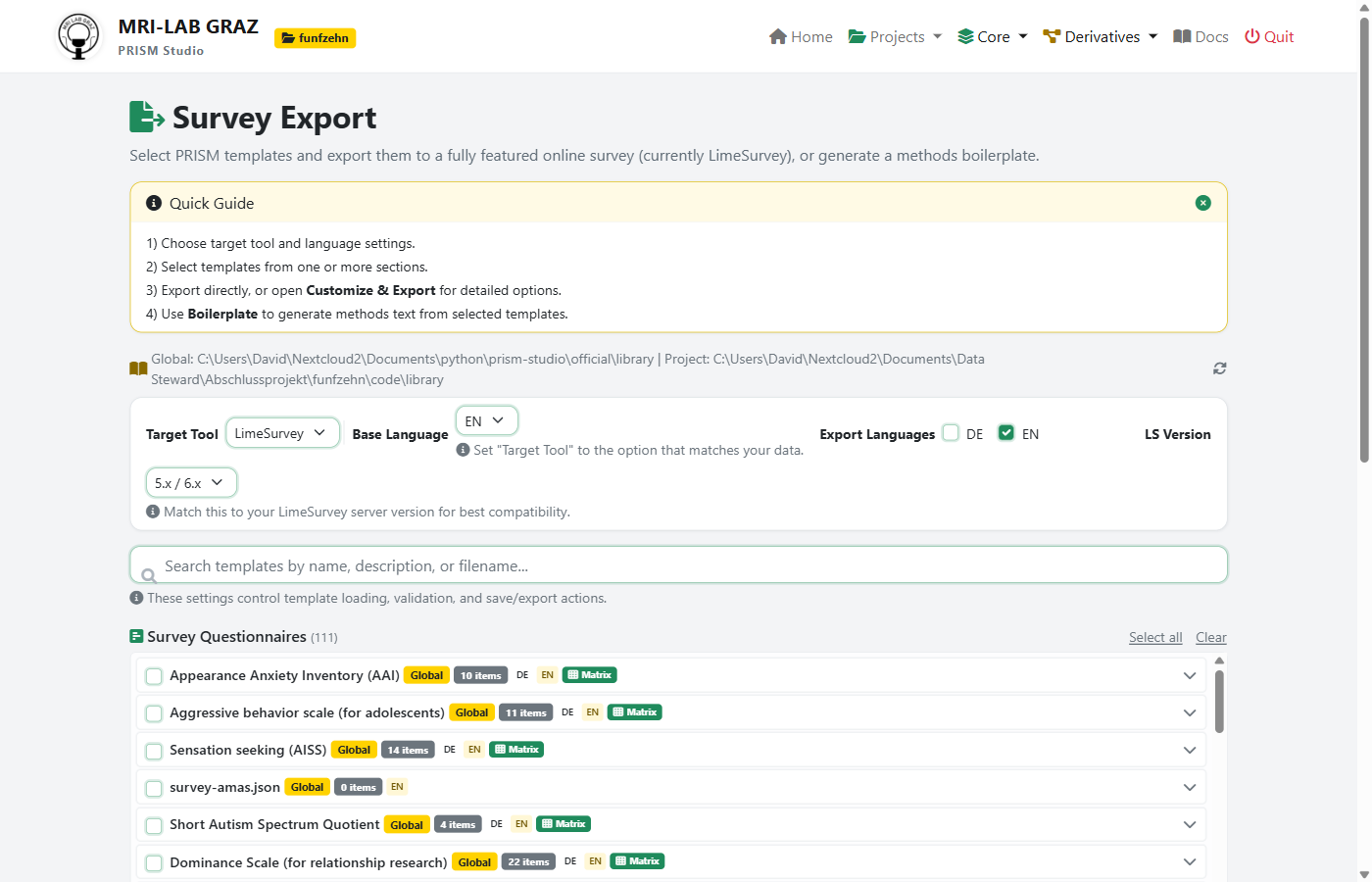
Configure the export settings:
Target Tool: LimeSurvey (default)
Base Language: The primary survey language (EN or DE)
Export Languages: Check additional languages for multilingual surveys
LS Version: Match this to your LimeSurvey server version (5.x/6.x recommended)
Select templates by checking one or more questionnaires from the list. For each selected template, you can set the Run number (for repeated administrations, e.g., pre/post design):
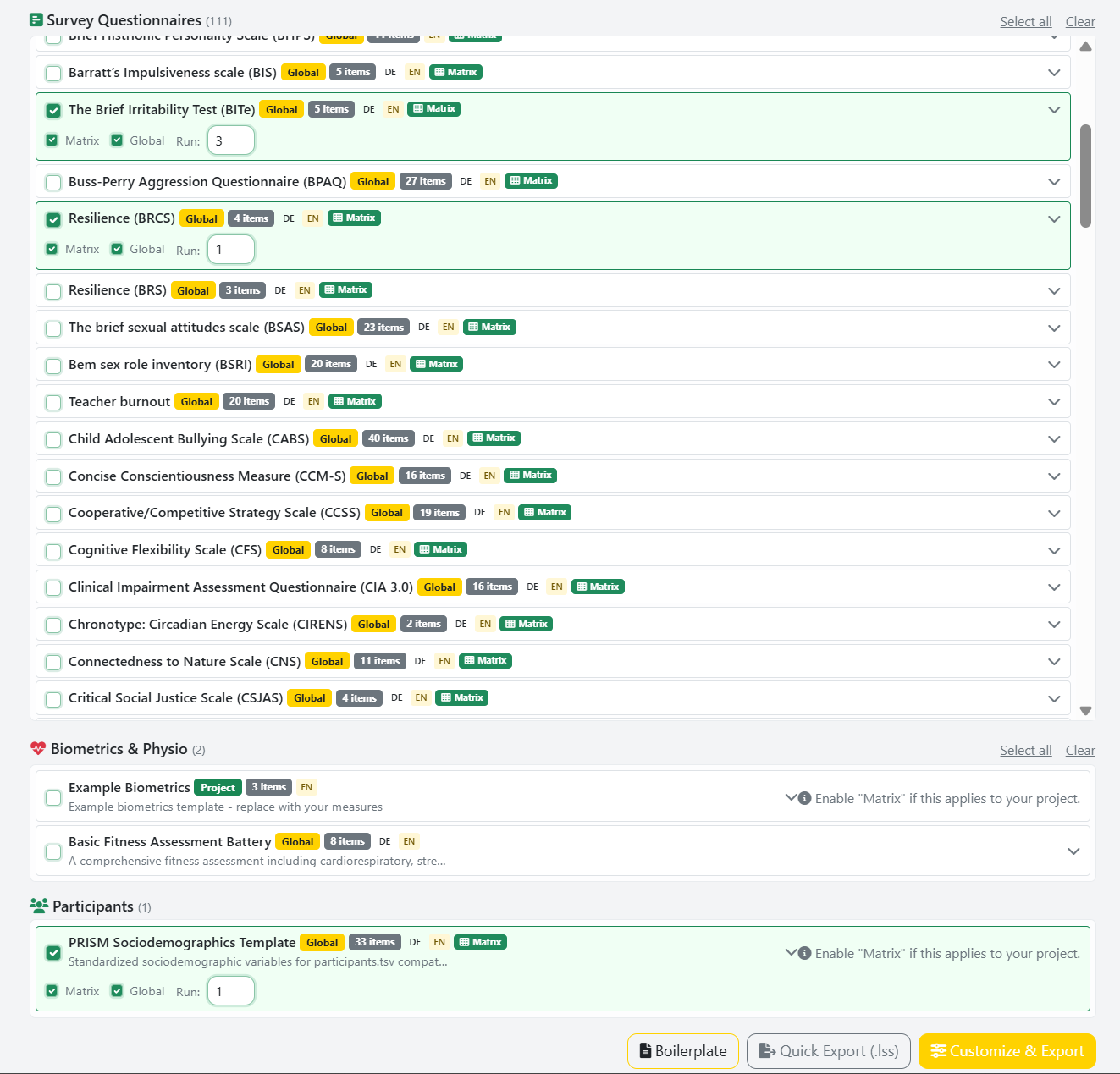
Each template shows:
Item count and available languages (DE/EN badges)
Question type (Matrix, List, etc.)
Source (Global library or Project library)
Tip
Use the search bar to filter templates by name, abbreviation, or description.
Step 2: Customize & Export
You have two export options:
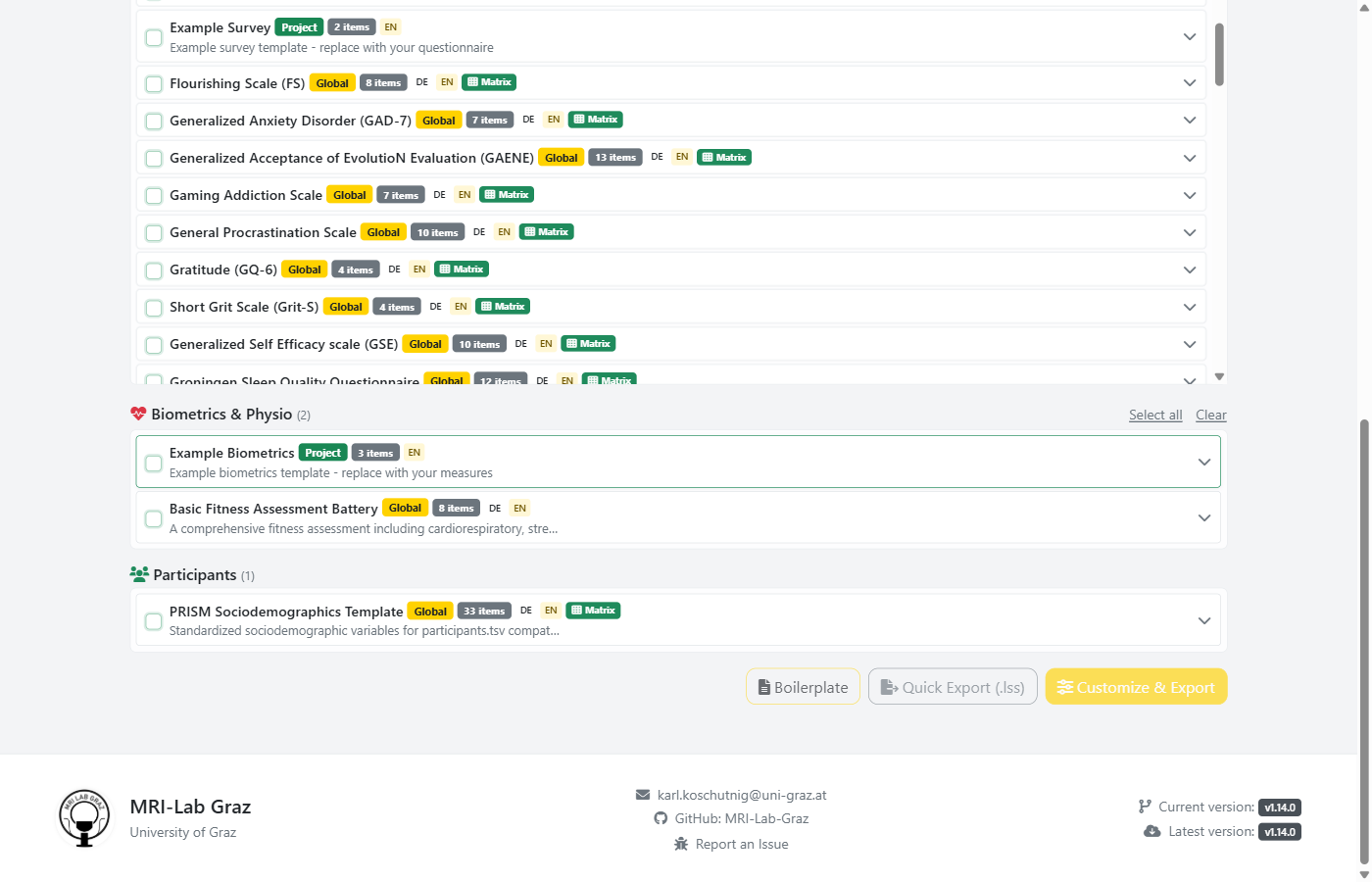
Quick Export (.lss): Downloads the
.lssfile immediately with default settingsCustomize & Export: Opens the Survey Customizer for detailed configuration
The Survey Customizer
The Customizer is the recommended path for production surveys. It provides full control over the survey structure and LimeSurvey-specific settings:
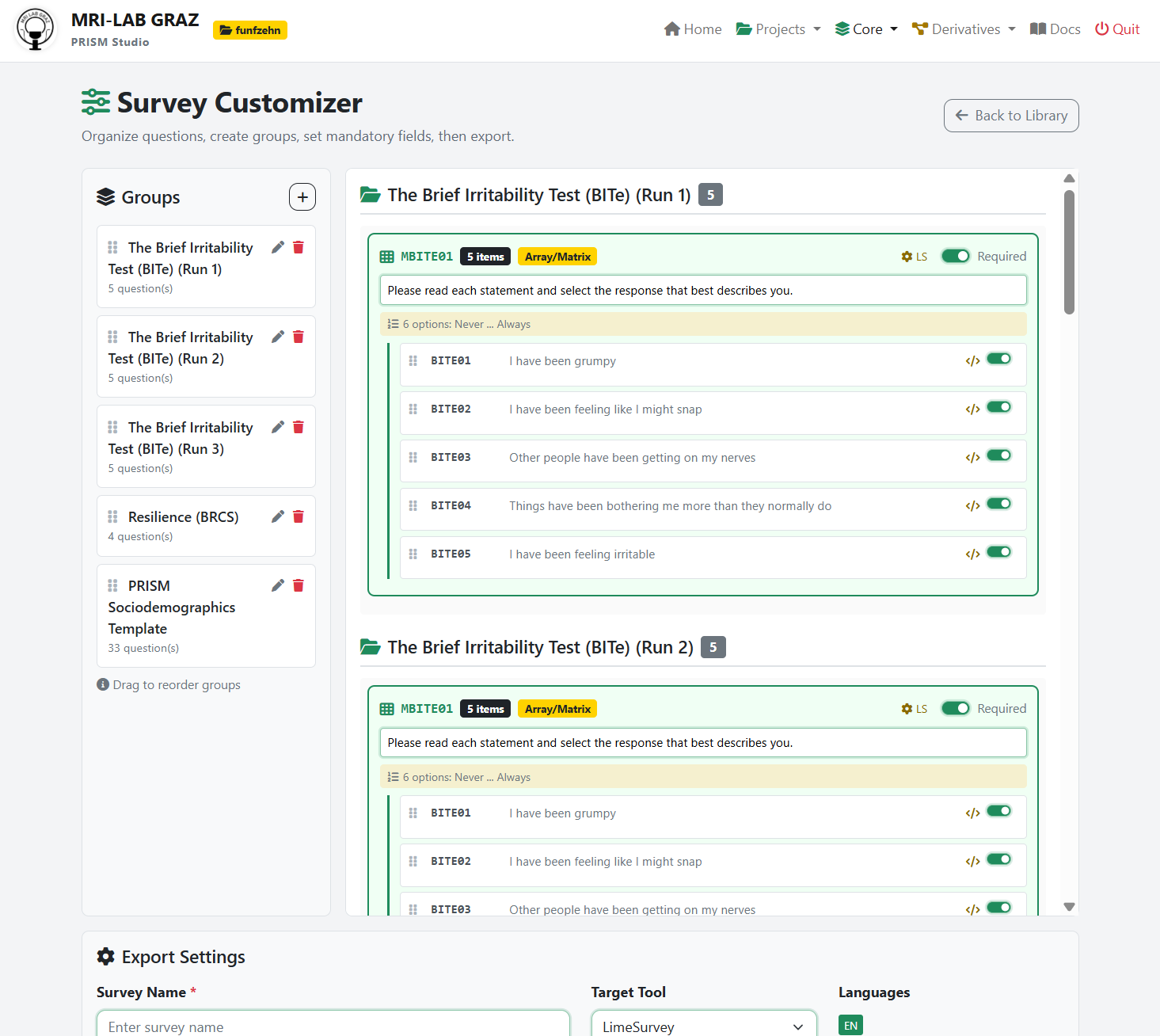
Question Group Management
Reorder groups via drag-and-drop on the left panel
Add/rename/remove question groups (pencil and trash icons)
Reorder questions within each group
Run numbers are shown per group (e.g., “Run 1”, “Run 2”, “Run 3” for repeated measures)
Per-Question Settings
Click the gear icon (LS) on any question to expand the LimeSurvey tool settings panel:
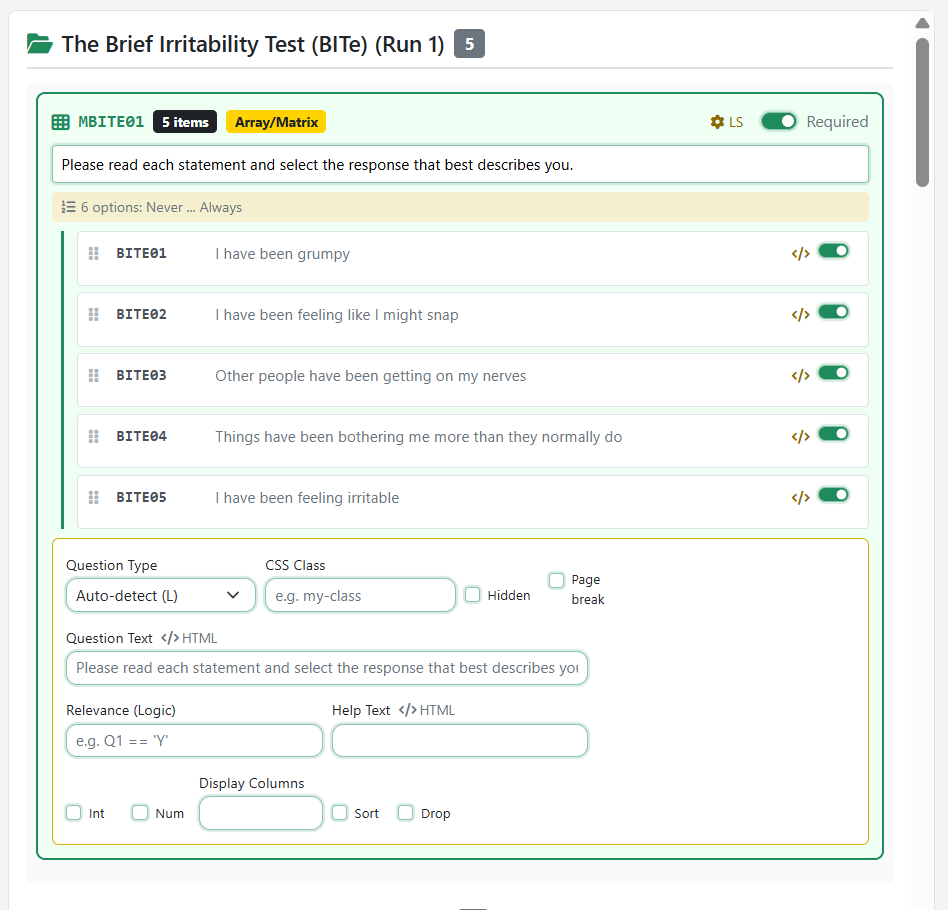
For each question, you can configure LimeSurvey-specific properties:
Setting |
Description |
When to use |
|---|---|---|
Question Type |
Override auto-detected type (Radio, Dropdown, Matrix, Numerical, Text, etc.) |
When you want a dropdown instead of radio buttons |
Mandatory |
Mark question as required |
For questions that must be answered |
Relevance |
Conditional display logic (e.g., |
Show/hide questions based on previous answers |
Hidden |
Hide question from respondent |
For calculated fields or metadata |
Input Width |
Control display width (1-12 grid units) |
For numerical or text inputs |
Validation Min/Max |
Enforce numeric range |
For age, rating scales, etc. |
CSS Class |
Custom styling |
For visual emphasis or grouping |
Page Break |
Force a page break before this question |
To control pagination |
Matrix Grouping
When Matrix Mode is enabled (default), questions with identical answer scales are automatically grouped into a matrix/array table in LimeSurvey. This creates a compact layout where respondents see all items with the same scale in one table.
Matrix Mode: Toggle on/off for matrix grouping
Global Matrix: Group all matching questions (not just consecutive ones)
Export Settings
At the bottom of the Customizer, configure the survey name, target tool, and language options:
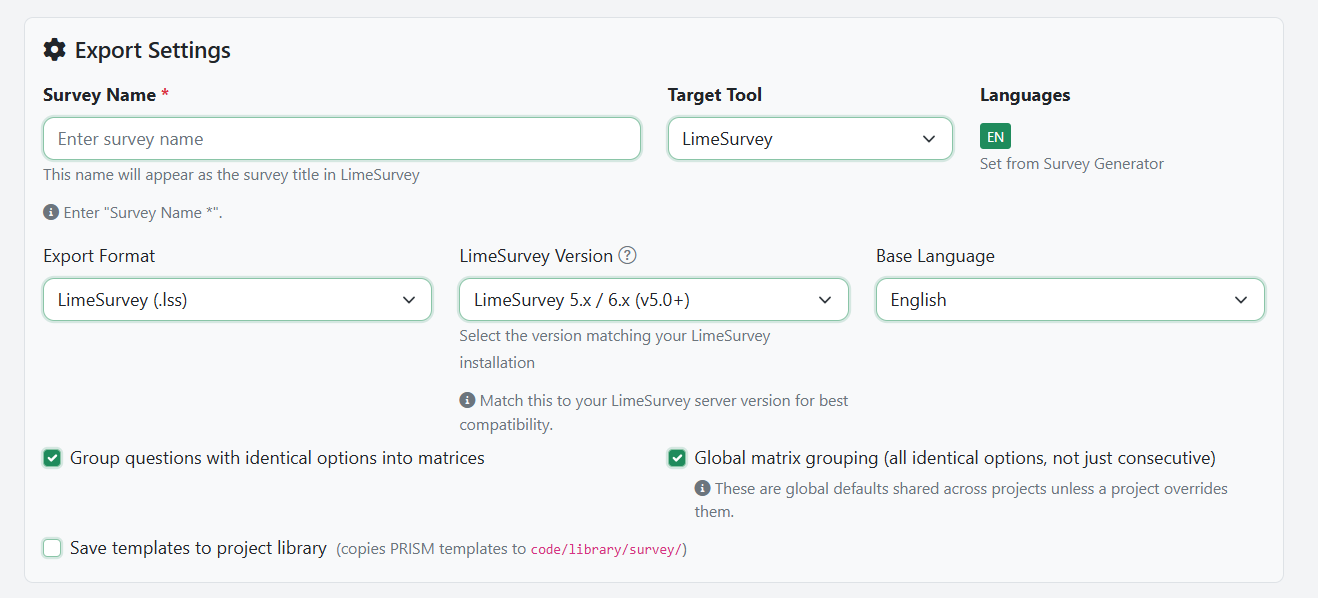
Survey-Level Settings
The Customizer also provides survey-wide LimeSurvey settings in expandable accordion sections:
Welcome & End Messages:
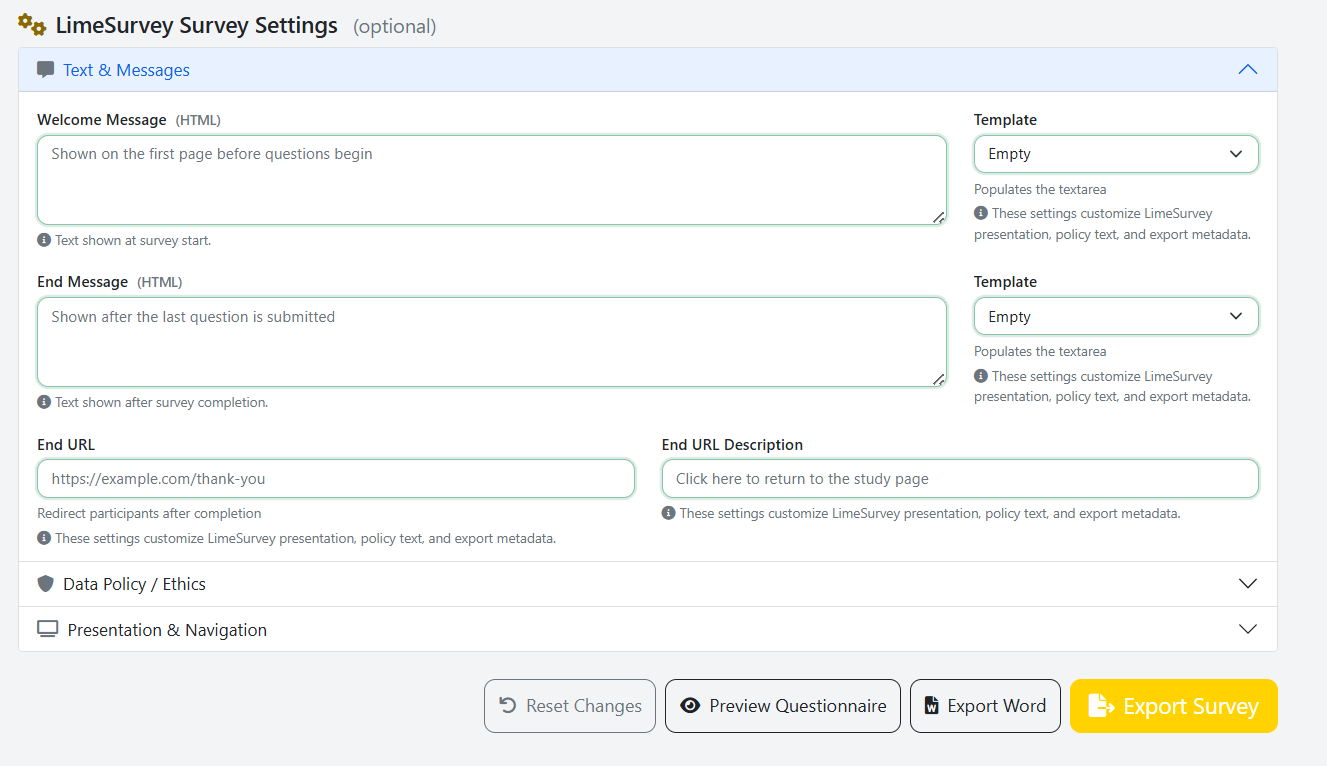
Welcome text with template dropdown (Standard, Academic, Brief)
End/thank-you text with template dropdown
End URL for redirect after completion
Data Policy & Consent:
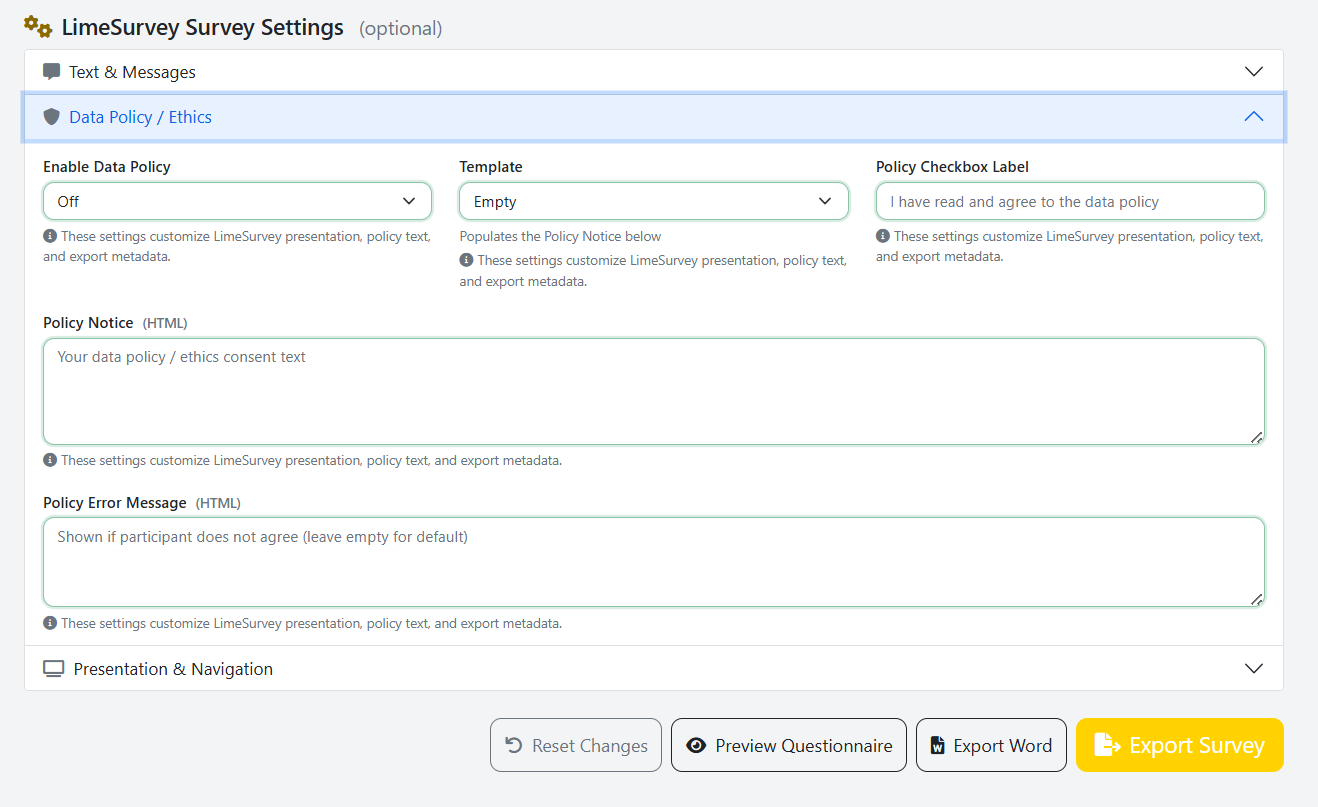
Data policy display mode (off, inline, popup)
Consent text with templates (Standard, GDPR, Anonymous, Longitudinal, Minimal)
Error message for declined consent
Checkbox label text
Navigation & Presentation:
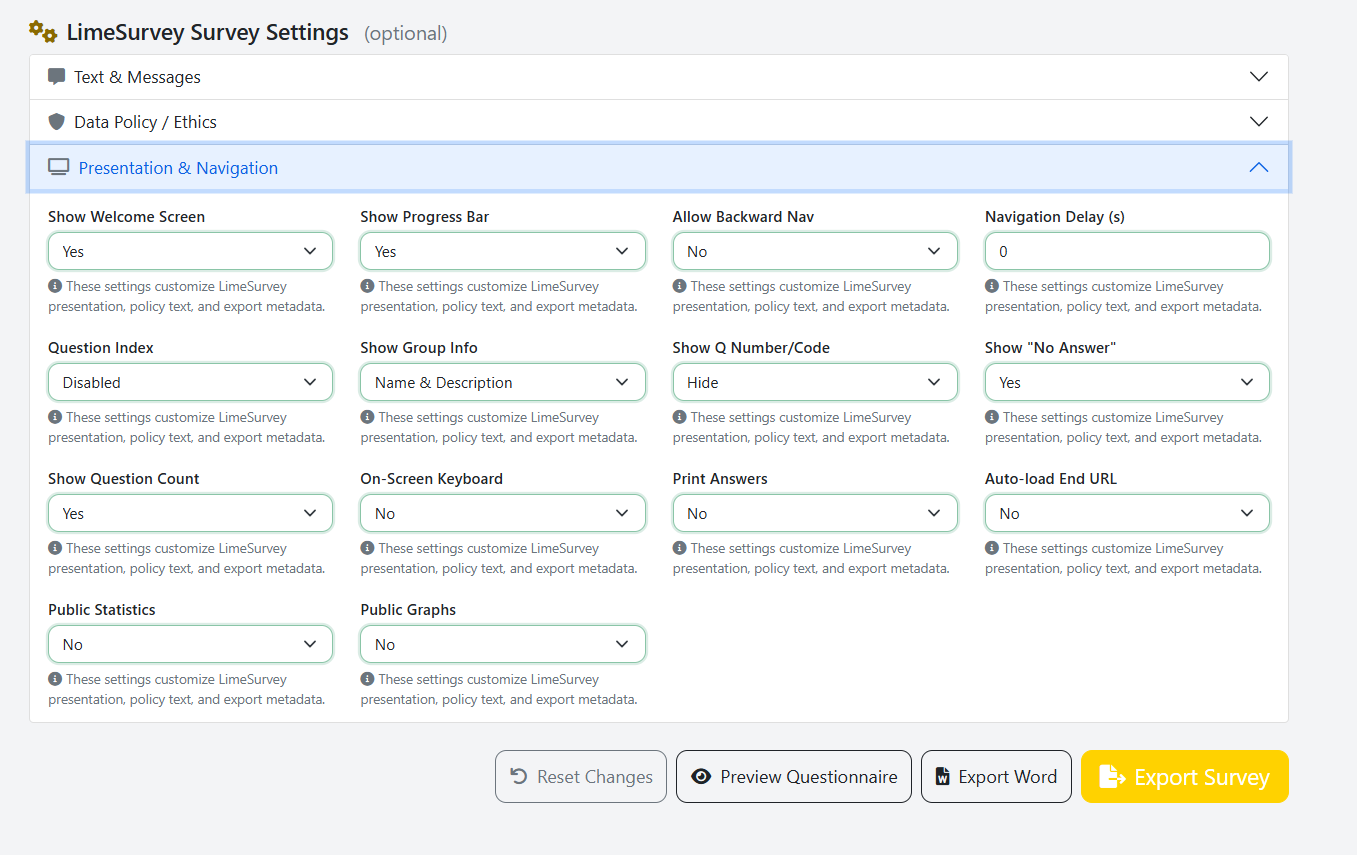
Navigation delay between pages
Question index display (disabled, incremental, full)
Group information display
Question numbering style
“No answer” option visibility
Progress bar display
Back button availability
Keyboard navigation toggle
Privacy & Statistics:
Print answers option
Public statistics / graphs
Auto-redirect after completion
Important
Save timings should be enabled if you want timing data in your PRISM dataset. This is configured in LimeSurvey itself (Notifications & Data settings), not in the Customizer.
Preview Before Export
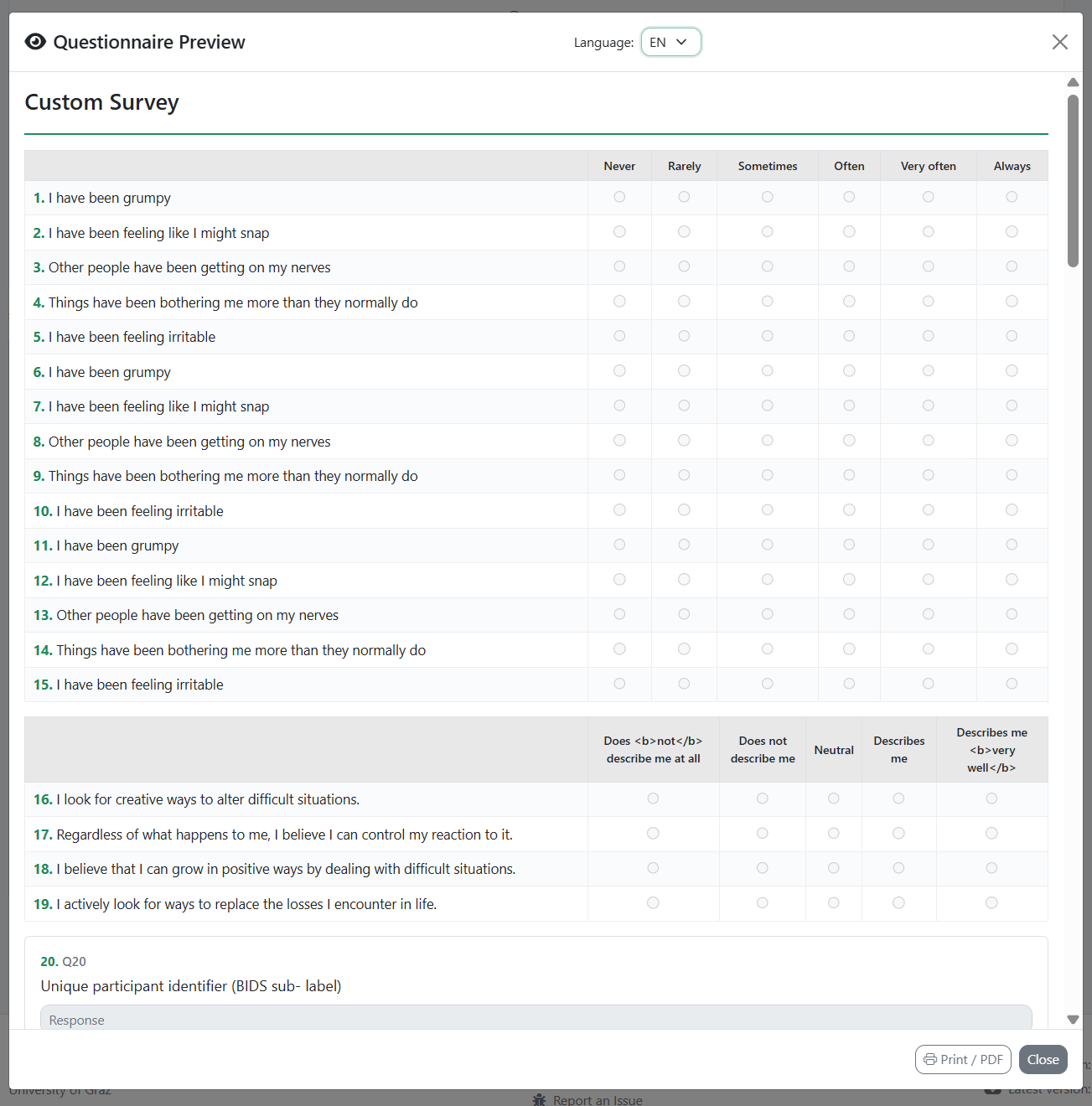
Click Preview Questionnaire in the Customizer to see a full preview of the assembled survey in a modal. This shows the questionnaire with matrix grouping and all enabled questions, helping you verify the layout before exporting:
Exporting the .lss File
Use the action buttons at the bottom of the Customizer:

Click Export Survey to generate and download the .lss file. If “Save to project library” is checked, the selected templates will also be saved to your project’s local library.
Step 3: Import into LimeSurvey
Log in to your LimeSurvey instance
Click Create Survey (or + Create new survey)
Select Import and upload the
.lssfileLimeSurvey will show a summary of imported questions and groups
Click Import to confirm
Tip
The imported survey will be in inactive state. Review all settings before activating.
Step 4: Adjustments in LimeSurvey
After importing, you may want to configure settings that are not part of the .lss export:
Recommended Settings to Check
Setting |
Location in LimeSurvey |
Why |
|---|---|---|
Date stamps |
Notifications & Data > Date stamp |
Required for timing analysis |
Save timings |
Notifications & Data > Save timings |
Required for response time analysis |
IP addresses |
Notifications & Data > Save IP address |
Optional, privacy consideration |
Token-based access |
Survey Participants |
For controlled access or longitudinal designs |
Email templates |
Email templates tab |
For invitation/reminder emails |
Survey theme |
General settings > Theme |
Visual appearance |
Response persistence |
Notification & Data |
Allow participants to save and resume |
Testing the Survey
Before activating:
Click Preview to test the survey as a respondent
Verify question order, matrix grouping, and conditional logic
Check all language versions if multilingual
Test on different devices (desktop, tablet, mobile)
Step 5: Data Collection
Activate the survey in LimeSurvey
Distribute the survey URL to participants
Monitor responses via LimeSurvey’s response panel
Note
Once a survey is activated, you cannot add or remove questions. Make all structural changes before activation.
Step 6: Export from LimeSurvey
After data collection is complete:
Recommended: Export as .lsa Archive
Go to Display/Export > Survey archive (.lsa)
Click Export
The
.lsafile contains the survey structure, all responses, and timing data in a single archive
Alternative: Export as CSV
Go to Responses > Export > Export results
Format: CSV
Heading format: Question code (important — do not use full question text)
Response format: Answer codes (recommended for analysis)
Include timing data if available
Warning
Always use Question code as the heading format. Using full question text will break the column-to-template mapping during PRISM import.
Step 7: Import Responses into PRISM
From .lsa Archive (Recommended)
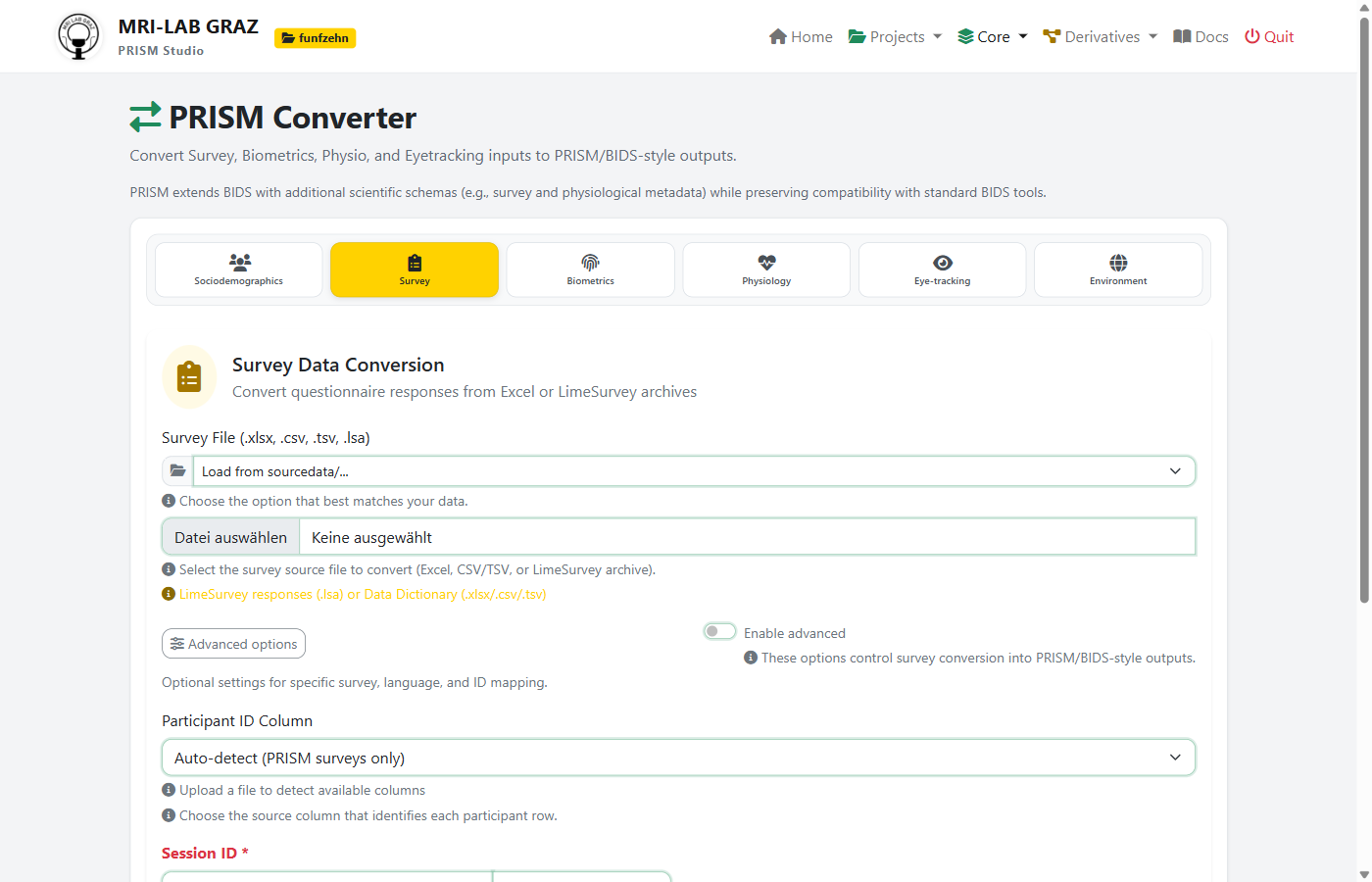
Navigate to Core > Converter > Survey tab
Upload the
.lsafile (or select from sourcedata dropdown)PRISM automatically:
Extracts the survey structure from the archive
Matches question groups against the template library
Detects participant ID and session columns
Configure:
Participant ID Column: Auto-detected, or select manually
Session ID: Enter session identifier (e.g.,
1,baseline,post)
Click Preview (Dry-Run) to verify the mapping
Click Convert to generate the BIDS-compatible output
From CSV/Excel Export
Upload the
.csvor.xlsxfile in the Survey converterSelect the matching template(s) from the library
Map the participant ID column
Proceed with Preview and Convert
What PRISM Creates
For each participant and session, PRISM generates:
Survey data files:
sub-001/ses-1/survey/
  sub-001_ses-1_task-gad7_survey.tsv     # Response data
  sub-001_ses-1_task-gad7_survey.json    # Metadata sidecar
LimeSurvey system variable files (if system columns detected):
sub-001/ses-1/survey/
  sub-001_ses-1_tool-limesurvey_survey.tsv   # System metadata
  sub-001_ses-1_tool-limesurvey_survey.json  # Field descriptions
Run Number Handling
When the same questionnaire is administered multiple times (e.g., pre/post design), PRISM automatically detects run numbers from question codes (e.g., PANAS01run02) and generates separate files:
sub-001_ses-1_task-panas_run-01_survey.tsv
sub-001_ses-1_task-panas_run-02_survey.tsv
System Variables (Metadata Preservation)
When converting LimeSurvey data, PRISM automatically separates platform metadata from questionnaire responses and writes them to dedicated tool-limesurvey files.
What Gets Separated
Core system columns (always present in LimeSurvey response table):
Column |
Description |
|---|---|
|
Response ID |
|
Submission timestamp |
|
Last page viewed |
|
Language at survey start |
|
Completion flag |
|
Randomization seed |
|
Participant access token |
Optional columns (when enabled in LimeSurvey Notifications & Data settings):
Column |
Description |
Enabled via |
|---|---|---|
|
Survey start timestamp |
Date stamp |
|
Last action timestamp |
Date stamp |
|
IP address |
Save IP Address |
|
Referrer URL |
Save Referrer URL |
Timing columns:
Pattern |
Description |
|---|---|
|
Total survey time (seconds) |
|
Time per question group (seconds) |
|
Time per question (seconds, LS 5+) |
Derived Fields
PRISM computes additional fields from the system data:
SurveyDuration_minutes: Total duration calculated from
submitdate - startdateCompletionStatus:
"complete"ifsubmitdateis present,"incomplete"otherwise
JSON Sidecar
Each tool-limesurvey TSV file is accompanied by a JSON sidecar that documents the fields with descriptions, data types, units, and sensitivity markers (e.g., token and ipaddr are marked as sensitive).
Importing Existing LimeSurvey Templates (.lss)
If you have an existing LimeSurvey survey and want to use it with PRISM:
Export the survey structure as
.lssfrom LimeSurvey (Display/Export > Survey structure)In PRISM Studio, navigate to Core > Template Editor
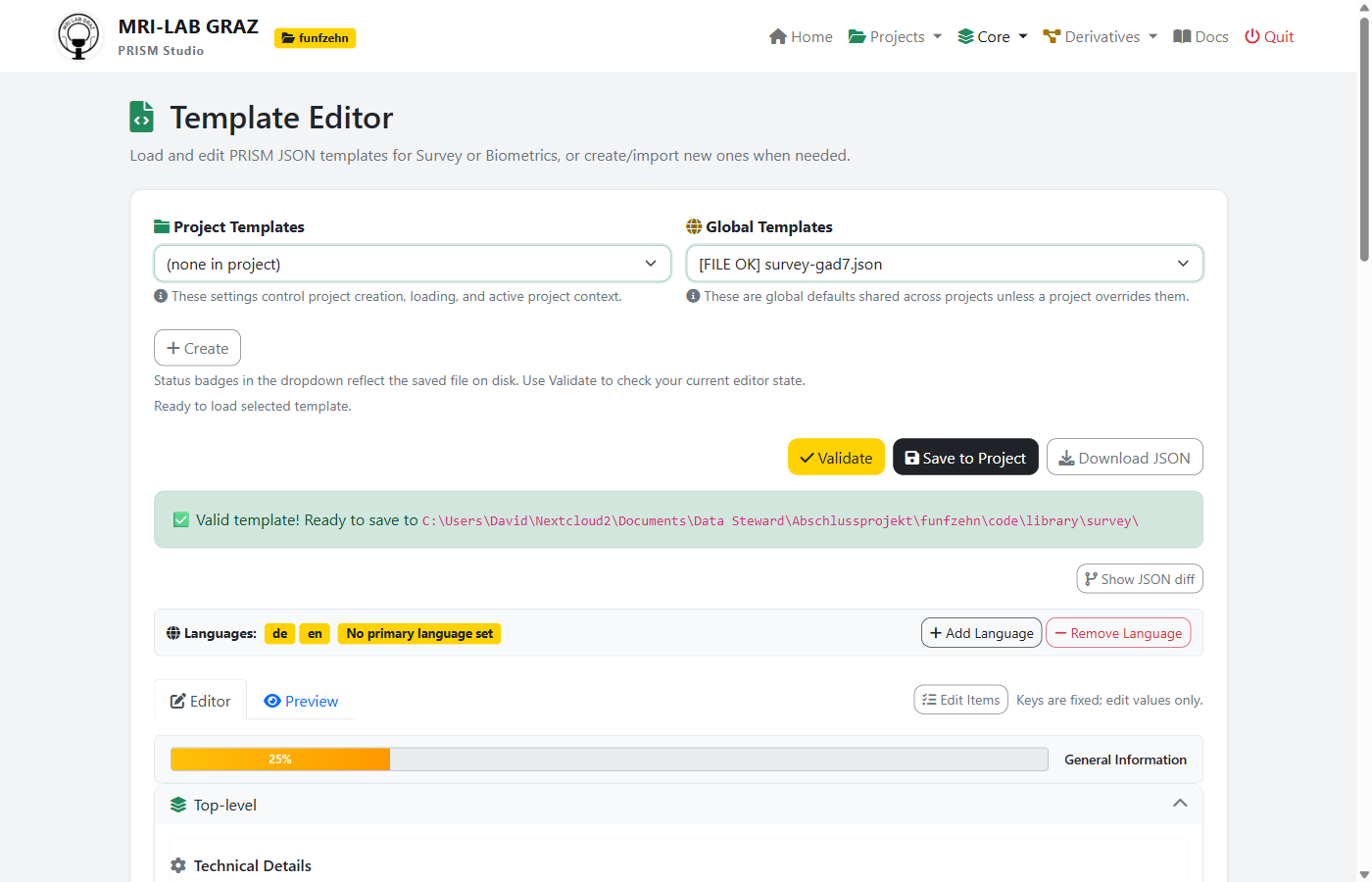
Click + Create and select Import from file
Upload the
.lssfileChoose import mode:
Combined: All questions in one template
Per Group: One template per question group (recommended)
Per Question: Individual template per question
Supported Question Types (Import)
LimeSurvey Code |
Type |
PRISM Mapping |
|---|---|---|
L |
List (Radio) |
Radio with Levels |
! |
List (Dropdown) |
Dropdown with Levels |
F |
Array (Flexible) |
Items with shared Levels |
A, B, C, E |
Array variants |
Items with implicit Levels |
1 |
Array Dual Scale |
Dual-scale items |
M |
Multiple Choice |
Checkbox |
S |
Short Free Text |
Short text |
T |
Long Free Text |
Long text |
N |
Numerical Input |
Numerical |
D |
Date/Time |
Date |
R |
Ranking |
Ranking |
G |
Gender |
Dropdown (M/F) |
Y |
Yes/No |
Radio (Y/N) |
X |
Text Display |
Boilerplate (display only) |
* |
Equation |
Calculated field |
Question Type Mapping (Export)
When exporting to LimeSurvey, PRISM automatically maps question types:
PRISM Template |
LimeSurvey Type |
Notes |
|---|---|---|
Items with Levels (2-10 options) |
L - List (Radio) |
Default for Likert scales |
Items with Levels (>10 options) |
! - List (Dropdown) |
Auto-converts |
Items with identical Levels |
F - Array (Matrix) |
When matrix mode is enabled |
InputType: numerical |
N - Numerical Input |
With min/max validation |
InputType: text (single-line) |
S - Short Free Text |
|
InputType: text (multiline) |
T - Long Free Text |
With configurable rows |
InputType: slider |
K - Multiple Numerical |
With slider appearance |
InputType: dropdown |
! - List (Dropdown) |
Explicit dropdown |
InputType: calculated |
* - Equation |
Hidden calculated field |
Code Sanitization
LimeSurvey has strict limits on code lengths. PRISM Studio automatically sanitizes codes during export:
Question codes: Max 15 characters (safe limit; LS allows 20)
Answer codes: Max 5 characters
Subquestion codes: Max 5 characters
Codes are made alphanumeric (no special characters), with collision resolution via incremental suffixes.
Best Practices
Variable Naming
To ensure smooth conversion between PRISM and LimeSurvey:
Question codes: Use short, alphanumeric codes matching the template item keys (e.g.,
GAD701,PSS01)Subquestion codes: Use simple suffixes (e.g.,
SQ001,01)Answer codes: Use numeric codes (e.g.,
0,1,2) rather than text codesAvoid special characters in all codes
LimeSurvey Settings for PRISM Compatibility
Enable these settings in LimeSurvey before activating your survey:
Setting |
Recommended |
Why |
|---|---|---|
Date stamp |
On |
Enables start/submit timestamps |
Save timings |
On |
Enables per-group and per-question timing |
Anonymized responses |
Off (or as required) |
Token-based tracking for longitudinal studies |
Question codes heading |
Always use for export |
Required for PRISM column mapping |
Combining Multiple Questionnaires
To create a multi-questionnaire survey:
Use the Survey Export page to assemble multiple templates into one
.lssOr in LimeSurvey: export each questionnaire as a Question Group (
.lsg) and import into a single surveyEach questionnaire should be its own question group for clean separation during re-import
CLI Reference
Import .lss to PRISM template
python app/prism.py convert survey --input survey.lss --library official/library \
    --output /path/to/dataset --session 1
Export PRISM template to .lss
The .lss export is currently only available through the web interface (Survey Export page).
Troubleshooting
Common Issues
Import shows “0 questions”: The .lss file may use an unsupported question type or encoding. Try opening it in a text editor to verify it’s valid XML.
Special characters in exported questions: PRISM Studio sanitizes question codes for LimeSurvey compatibility. Codes longer than 15 characters are truncated, and special characters are removed.
Timing data not appearing: Ensure “Save timings” was enabled in LimeSurvey before data collection started. Timing data is only available if the survey was configured to record it.
System variables missing in output: System variable separation only applies to LimeSurvey-sourced data (detected automatically). If your data was exported as plain CSV without system columns, no tool-limesurvey files will be generated.
Matrix grouping not working as expected: Matrix grouping requires questions with identical answer scales (same codes and labels). Even small differences in scale labels will prevent grouping.
Column mapping errors during import: Ensure LimeSurvey data was exported with Question code as the heading format, not full question text or question ID.